Live translated captions for any video or meeting on Mac
Watching a lecture in another language, or on a call where you miss half the words? Tidytalk captions whatever your Mac is playing and translates each sentence as it's spoken, in any app, with no browser extension.
Updated 2026-11-05
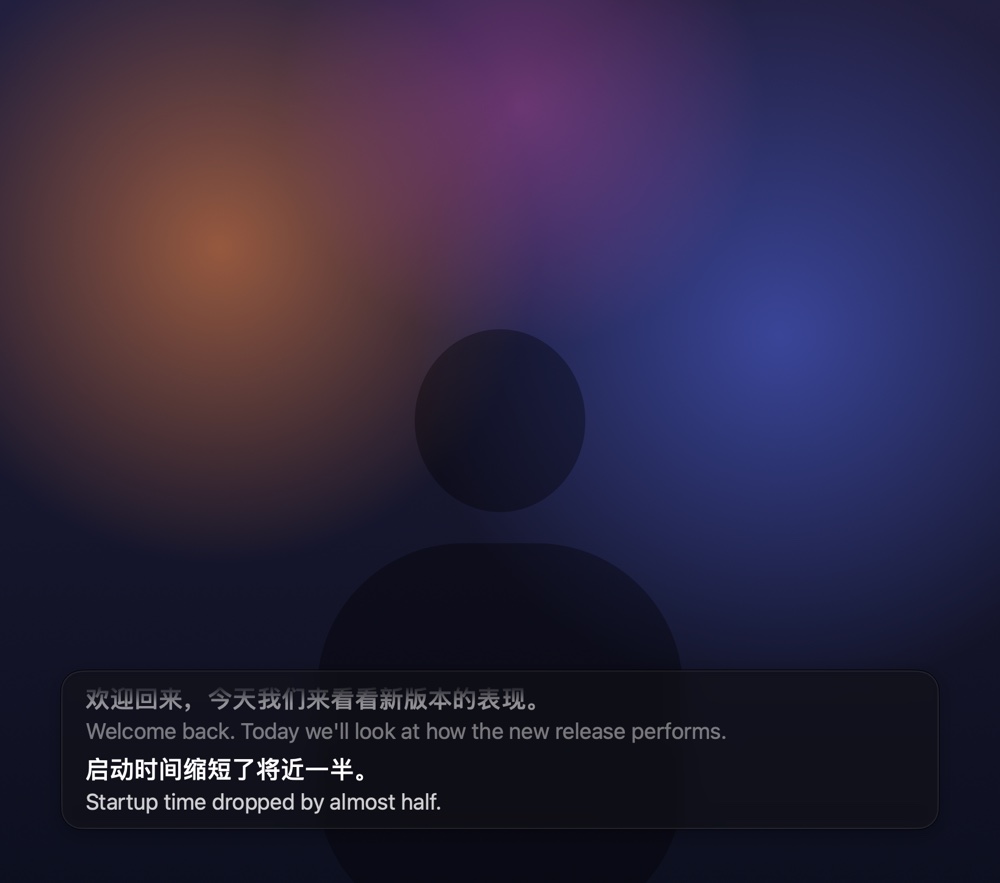
What it can caption
Anything your Mac plays: YouTube or Bilibili in a browser, a downloaded video, a podcast, a course, or the other people on a Zoom, Teams, or Meet call. Tidytalk records only the computer's audio, never your microphone, so your own voice on a call isn't captioned.
Set it up once
- Install Tidytalk and finish the setup guide.
- For translation, choose an AI service in Settings › AI Service. Ollama, LM Studio, or Apple Intelligence keep everything on your Mac; with a cloud service such as DeepSeek or OpenAI, caption text is sent to it.
- In Settings › Live Captions, turn on Translate Captions and pick a language under Translate To: English, Simplified or Traditional Chinese, Japanese, Korean, French, German, or Spanish.
Start captions
- Play the video or join the call.
- Press ⌃⌥C (Control + Option + C), or choose Start Listening under Live Captions in the menu bar menu. The first time, macOS asks you to allow Tidytalk to record system audio.
- The caption bar appears with one sentence per line and the translation underneath. While listening, the menu bar icon shows an orange dot.
- Press ⌃⌥C again to stop. The audio and text are cleared from memory.
Translation as you listen
With Translate as You Listen on (the default), the sentence that's still being spoken is translated too and updates as it goes, so you're not waiting for the speaker to finish. When the sentence ends, the final translation replaces it. Turn it off in Settings › Live Captions to translate only finished sentences, which uses fewer AI calls. Sentences already in your target language are left alone.
Caption just one app
By default Tidytalk captions all audio except its own sounds. To ignore notifications or music, pick a single app under Listen To in the menu bar menu or in Settings › Live Captions.
Match the speech model to the video's language
- The default SenseVoice model recognizes Mandarin (with English mixed in), English, Japanese, Korean, and Cantonese.
- For other spoken languages, such as French or German, switch to Qwen3-ASR or Whisper Turbo in Settings › Speech Model.
Make it look right
- Drag the caption bar anywhere; it remembers the spot.
- Choose a dark or glass style and a text size in Settings › Live Captions.
- It hides after 10 seconds of silence and comes back when there's sound. Hover over it for translate, pause, and close buttons.
Paste what was just said
Taking notes? Put your cursor in a text field and press ⌃⌥V. Tidytalk tidies the latest passage, from the last pause of more than 2 seconds and up to 30 seconds, and pastes it. You can also hover over a sentence in the captions and click Paste to paste from there onward.
Privacy
Audio is recognized on your Mac and never uploaded. With a local AI service or Apple Intelligence, the translation stays on your Mac too, and captions work fully offline. Nothing is saved after you stop listening.